

Starting a presentation from scratch is one of those tasks that sounds simple until you’re actually staring at a blank slide. Between choosing a layout, writing compelling content, sourcing visuals, and making everything look polished, the process can eat up hours before you’ve said a single meaningful thing. AI-powered presentation tools have changed that equation significantly. Whether you want to build a deck from a single text prompt or use intelligent features to upgrade a presentation you’ve already started, the right tool can compress hours of work into minutes. This article covers the best solutions available today, including what Microsoft PowerPoint Copilot does well, where alternatives shine, and how to get the most out of every option.
What Microsoft PowerPoint Copilot Actually Does
Microsoft PowerPoint Copilot is the AI assistant built directly into PowerPoint as part of the Microsoft 365 Copilot subscription. It integrates with the familiar ribbon interface, which means there is no separate app to learn and no data migration required. For organizations already embedded in the Microsoft 365 ecosystem, it can feel like a natural next step.
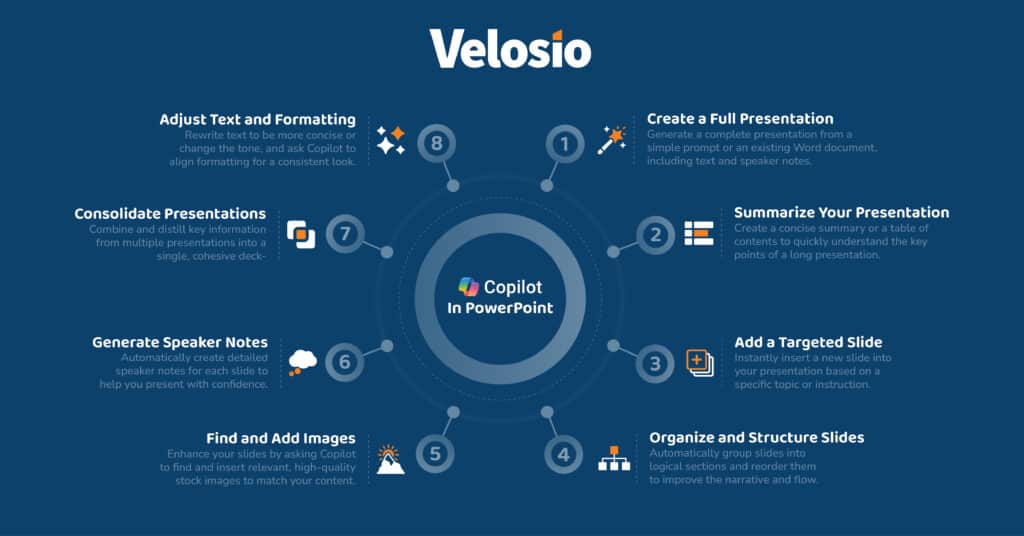
When you open a blank presentation and invoke Copilot, you can type a prompt describing the topic, the audience, and the desired length. Copilot then generates a draft deck with suggested slide titles, body content, and a basic layout. It draws from your prompt and, when granted access, from files stored in Microsoft 365, including Word documents, Excel data, and SharePoint content. This ability to pull from your existing organizational documents is one of its most powerful differentiators: if you have a product brief or a quarterly report already written, Copilot can use it as source material rather than generating content from scratch.
Copilot can also enhance slides you have already built. You can ask it to rewrite bullet points for clarity, suggest a more compelling opening slide, or summarize a section into a single concise statement. The feature called “Designer” (which predates Copilot but has been enhanced by it) offers real-time layout suggestions as you work, automatically adjusting spacing, imagery placement, and visual hierarchy. For teams that use PowerPoint as their primary presentation tool, Copilot removes a lot of the friction from both the creation and the revision process.
That said, Copilot requires a Microsoft 365 Copilot license as a paid add-on, and it works best for users already comfortable in PowerPoint whose organizations store documents in SharePoint or OneDrive. If you need branded templates that match a specific visual identity, a more design-forward platform may be needed to achieve the finish you want.
Using AI to Start a Presentation from a Prompt
One of the most valuable things any AI presentation tool can do is generate a coherent first draft from nothing more than a text description. This is especially useful for busy professionals who know what they need to communicate but do not have the time to build a narrative arc, select layouts, and write copy all at once.
When writing a prompt for an AI presentation generator, specificity pays off. A vague prompt like “marketing presentation” will produce something generic. A detailed prompt like “a 10-slide investor pitch for a B2B SaaS company targeting mid-market retail, focused on reducing inventory loss” will yield something far more usable. Think about including your target audience, the goal of the presentation, the approximate number of slides, and any key messages or data points you want to highlight.
Most AI tools that accept text prompts will return a structured deck with a title slide, a problem-solution framework, supporting slides, and a closing call to action. From there, your role shifts from creator to editor, which is a much faster workflow. You review, adjust, and refine rather than building from the ground up. For most professionals, this alone saves between one and three hours per presentation.
Here are some tips for making the most of prompt-to-presentation features:
- Write your prompt like a brief. Include context, audience, tone, and purpose.
- Specify a slide count. AI tools tend to produce more focused decks when given a target length.
- Mention the format. Is this a live presentation or a document someone will read on their own? AI can adjust narrative density accordingly.
- Ask for a specific structure. If you want a before/after story, a data-heavy report style, or a step-by-step tutorial format, say so in your prompt.
- Iterate. Your first generation is a draft, not a final product. Use follow-up prompts to adjust tone, expand a section, or cut a slide that does not fit.
Enhancing Existing Presentations with AI
Not every presentation starts at zero. A lot of the time, you have slides that are mostly done but need polish: the copy is too dense, the layout feels dated, or the visual hierarchy is unclear. AI tools are increasingly capable of coming into an existing deck and making intelligent improvements.
Microsoft PowerPoint Copilot’s “edit with Copilot” function lets you select a slide or a group of slides and ask for specific enhancements. Common use cases include condensing paragraphs into bullet points, adjusting reading level, adding speaker notes automatically, and suggesting alternative layouts for cluttered slides. These are tasks that used to require significant time or the help of a colleague with strong design instincts.
Beyond PowerPoint, several browser-based AI platforms allow you to import an existing presentation and apply AI-driven improvements at scale. Some tools will analyze every slide and flag readability issues, suggest header rewrites, or automatically apply a consistent visual theme across the deck, which is especially useful when you have inherited a presentation built by someone else and need to bring it up to your organization’s standards quickly.
Here are additional tips for enhancing existing content with AI:
- Start with a content audit. Before asking AI to edit, identify which slides need the most help. This helps you direct the AI more precisely.
- Use AI to tighten the narrative. Ask the tool to review whether your slides tell a coherent story and suggest where slides should be reordered.
- Generate speaker notes automatically. Most AI tools can write notes for each slide based on the slide content, which is a significant time-saver for speakers who present frequently.
- Apply brand consistency checks. Some AI tools can flag slides where fonts, colors, or layout patterns deviate from a template standard.
- Let AI suggest data visualizations. If you have a slide full of text-heavy statistics, ask the AI to recommend which data points would work better as a chart or infographic.
Professional Templates and Why They Still Matter
Even with the best AI draft in hand, templates play a critical role in making a presentation look credible and professional. Templates are not just visual decoration. They encode decisions about typography, spacing, color hierarchy, and information density that take designers years to develop an intuition for. A good template makes even an AI-generated draft look considered and intentional.
Microsoft PowerPoint includes a large library of official templates, many updated to reflect modern design sensibilities. When using Copilot, the generated deck will adopt whatever default theme is active in your PowerPoint installation, or you can specify a theme before generating. If your organization has a branded PowerPoint template file, you can apply it to a Copilot-generated deck just as you would any other presentation.
For users who want more design variety or who are not working within the Microsoft ecosystem, browser-based tools often provide broader and more visually differentiated template libraries. Templates in these platforms are typically organized by use case (pitch deck, sales presentation, educational content, project update) and by visual style, making it easy to find a starting point that fits the tone of your content.
Adobe Express: A Powerful AI Presentation Option for Visually Driven Work
If your presentation needs to do more than communicate information and also needs to look distinctive, on-brand, and visually compelling, Adobe Express is worth serious consideration. Adobe Express includes an AI presentation maker that allows you to generate complete slide decks from a text prompt, selecting from a wide range of professionally designed templates and applying Adobe’s deep design intelligence to the result.
What sets Adobe Express apart is the integration with Adobe’s broader creative ecosystem. Fonts, colors, and design assets from your brand kit can be applied automatically, ensuring visual consistency across every slide. The platform also provides access to Adobe Stock imagery and Adobe Firefly-powered generative graphics, which means you are not limited to generic clip art. The AI generation engine within Adobe Express is designed to produce decks that feel crafted rather than assembled, which is valuable for client-facing work, sales pitches, conference presentations, and anything where first impressions carry significant weight.
Adobe Express is browser-based and does not require a PowerPoint license or a Microsoft 365 subscription, making it accessible to freelancers, small business owners, educators, and creative professionals outside a Microsoft environment. It is also a strong option for teams that produce a high volume of presentations and need a streamlined workflow without sacrificing visual quality.
Choosing the Right Tool for Your Workflow
With so many options available, the decision of which AI presentation tool to use comes down to practical questions about your existing environment and your presentation goals.
If you work primarily in Microsoft 365 and your presentations tend to be data-heavy or internally focused, Microsoft PowerPoint Copilot is the most logical choice. Its ability to reference your organizational files is a genuine advantage, and the fact that it lives inside PowerPoint means there is no learning curve or format conversion required.
If you prioritize visual quality, brand consistency, and creative design, Adobe Express offers a more design-forward experience with access to premium assets and a template library built by professional designers. It is the better choice when the look and feel of the presentation is as important as the content itself.
If you are an individual contributor, educator, or small business owner outside either major ecosystem, a number of standalone AI presentation platforms offer solid functionality with minimal setup. Evaluate them on template quality, customization depth, export options, and the quality of AI-generated content.
Here are a few final tips to help you get the best results regardless of which tool you choose:
- Always review AI-generated content before presenting. AI drafts can be excellent starting points but should never be presented without a human review for accuracy, tone, and factual correctness.
- Keep your prompts saved. If you find a prompt structure that consistently generates useful decks for a particular type of presentation, save it as a template prompt for future use.
- Use AI for the first 80 percent, your judgment for the last 20 percent. The goal is to let AI handle the heavy lifting while you focus on the nuance and the details that make a presentation truly effective.
Frequently Asked Questions
What is Microsoft PowerPoint Copilot and how do I get access to it?
Microsoft PowerPoint Copilot is an AI assistant integrated directly into PowerPoint as part of the Microsoft 365 Copilot suite. It allows users to generate complete presentation drafts from text prompts, enhance existing slides, write speaker notes, and get real-time layout suggestions. To access it, you need an active Microsoft 365 subscription with the Copilot add-on enabled. As of 2024 and into 2025, Copilot for Microsoft 365 is available to business, enterprise, and education subscribers, though licensing requirements vary depending on your plan type and organization size. For teams evaluating whether the upgrade is worthwhile, Microsoft offers trial periods that allow you to test Copilot features before committing to a full subscription.
Can AI presentation tools really replace a professional designer?
For many types of presentations, AI tools can produce results that are more than good enough without any designer involvement. Internal reports, team updates, educational materials, and many client-facing decks can be built quickly and look polished using AI platforms with strong template libraries. That said, there are situations where a professional designer still adds irreplaceable value: brand launches, high-stakes keynotes, investor roadshows, and any presentation where the visual experience is central to the audience’s perception. The practical answer for most teams is that AI handles the volume of everyday presentations, freeing designers to focus on work that genuinely requires their expertise.
How can I make sure AI-generated presentation content is accurate?
AI language models generate content based on patterns in training data, which means they can produce confident-sounding statements that are factually incorrect, outdated, or incomplete. The safest approach is to treat every AI-generated draft as a starting point that requires human verification, not a finished product. For data-driven presentations, always cross-reference statistics with your original sources. For presentations that include industry-specific claims, regulatory information, or technical details, have a subject matter expert review the draft before it goes to an audience. Tools like Microsoft PowerPoint Copilot, which can draw from your own organizational documents rather than general internet data, tend to produce more accurate and contextually relevant content, though human review is still essential.
What makes a good template for AI-generated presentations?
A good template for AI-generated presentations does three things well: it establishes clear visual hierarchy so audiences can follow the content easily, it provides enough layout variety to accommodate different types of slides (title, data, image, text-heavy, closing), and it reinforces the presenter’s brand or professional identity. When evaluating templates, look for ones designed by professional designers rather than assembled from generic elements. Also consider how well the template accommodates the type of content you typically present. A template with large image placeholders works well for storytelling decks but may not suit a data-heavy financial report. For teams presenting externally, templates with a brand kit feature, such as those available in Adobe Express, allow you to automatically apply your organization’s approved colors and fonts to every slide. For project management presentations specifically, tools like Notion can help you organize your source content and outline before you import it into an AI presentation tool, improving the quality of the final deck.
Are there AI presentation tools that work offline or without a subscription?
Most leading AI-powered presentation tools, including Microsoft PowerPoint Copilot and browser-based platforms, require an internet connection because processing happens in the cloud. PowerPoint itself can be used offline for basic editing, but Copilot’s AI capabilities require an active connection and subscription. Some legacy template libraries within desktop applications are available offline, but AI-generated drafts, real-time design suggestions, and generative imagery features all depend on cloud access. For professionals who frequently work in low-connectivity environments, the practical workaround is to generate and save your AI-drafted presentation while connected, then edit and finalize it offline. If offline functionality is a firm requirement, verify technical specifications of any platform before committing.
Conclusion
AI has made it faster and more accessible than ever to build presentations that are well-structured, visually appealing, and tailored to a specific audience. Microsoft PowerPoint Copilot brings powerful AI capabilities directly into a tool millions of professionals already use, with particular strengths around document integration within the Microsoft 365 ecosystem. For users who need more design flexibility or a tool that works outside that environment, platforms like Adobe Express offer a compelling alternative with professional templates, brand kit integration, and AI generation that prioritizes both quality and creativity.
Regardless of which tool you choose, the most important shift is conceptual: stop thinking of presentations as something you build from scratch and start thinking of AI as a capable first drafter that gets you to a strong starting point in minutes. Your value as a communicator lies in the judgment, insight, and storytelling you bring to the final result. Let AI handle the rest.
